Why Download YouTube Videos?
There are many legitimate reasons to download YouTube videos for personal use. Perhaps you want to watch educational content during your commute without using mobile data, or you need to save a tutorial for reference when you are offline. Whatever your reason, VDL makes the process simple and straightforward.YouTube is the worlds largest video platform, hosting billions of videos across every imaginable topic. From music videos and documentaries to tutorials and vlogs, there is no shortage of content worth saving for later.
What Makes VDL the Best Choice?
Before we dive into the tutorial, let us understand why VDL stands out among video downloaders:
- Completely Free - No hidden costs, no premium tiers, no subscriptions
- Privacy Focused - No account required, no data collection
- No Ads - Clean interface without annoying advertisements
- High Quality Downloads - Support for 360p, 720p, 1080p, and even 4K resolution
- Audio Extraction - Convert any video to MP3 for music and podcasts
- Playlist Support - Download entire playlists with a single URL
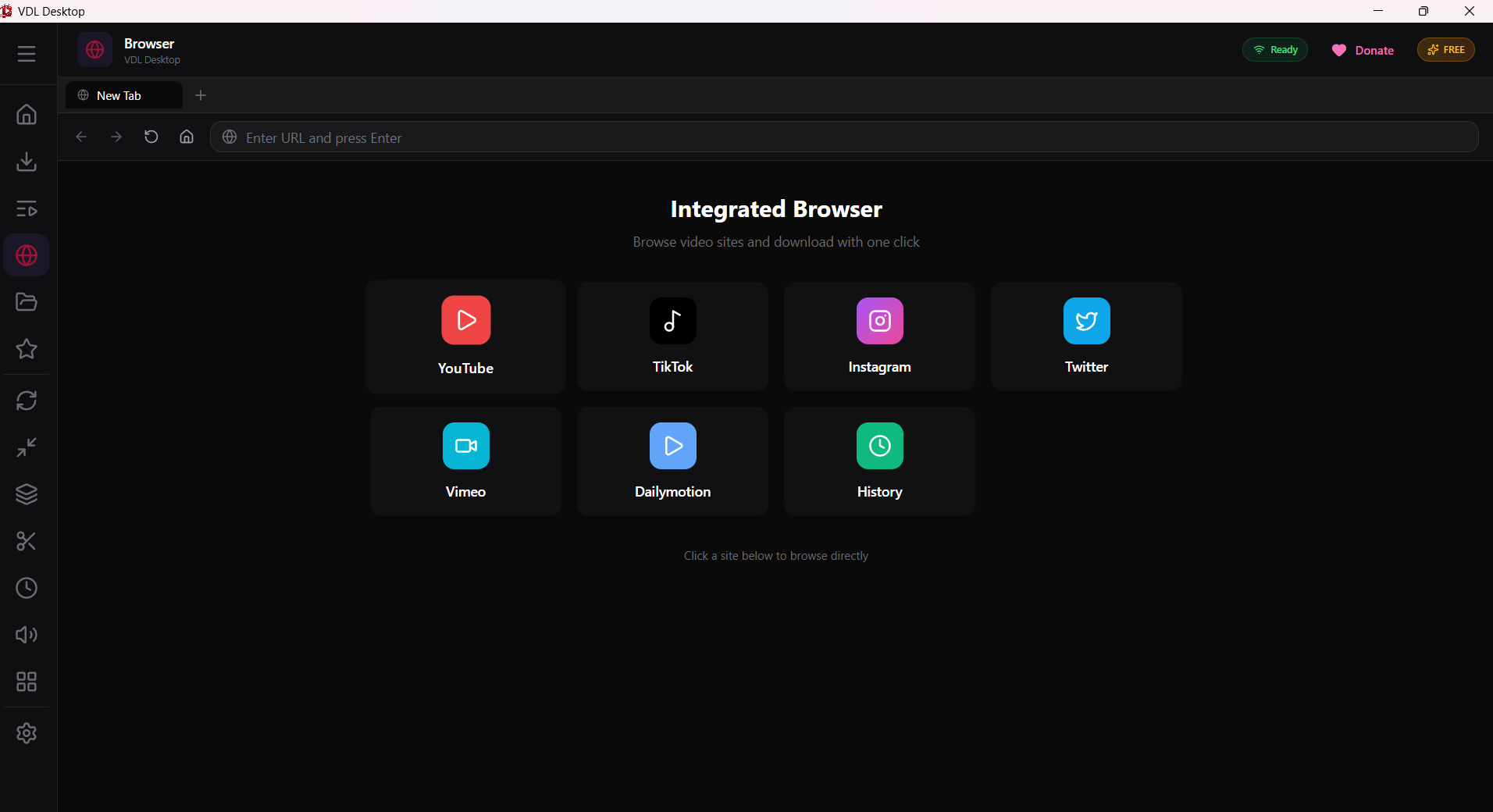
- Integrated Browser - Navigate YouTube directly within the app
- No Watermarks - Your downloads are clean and unbranded
Step-by-Step Download Guide
Step 1: Install VDL Desktop
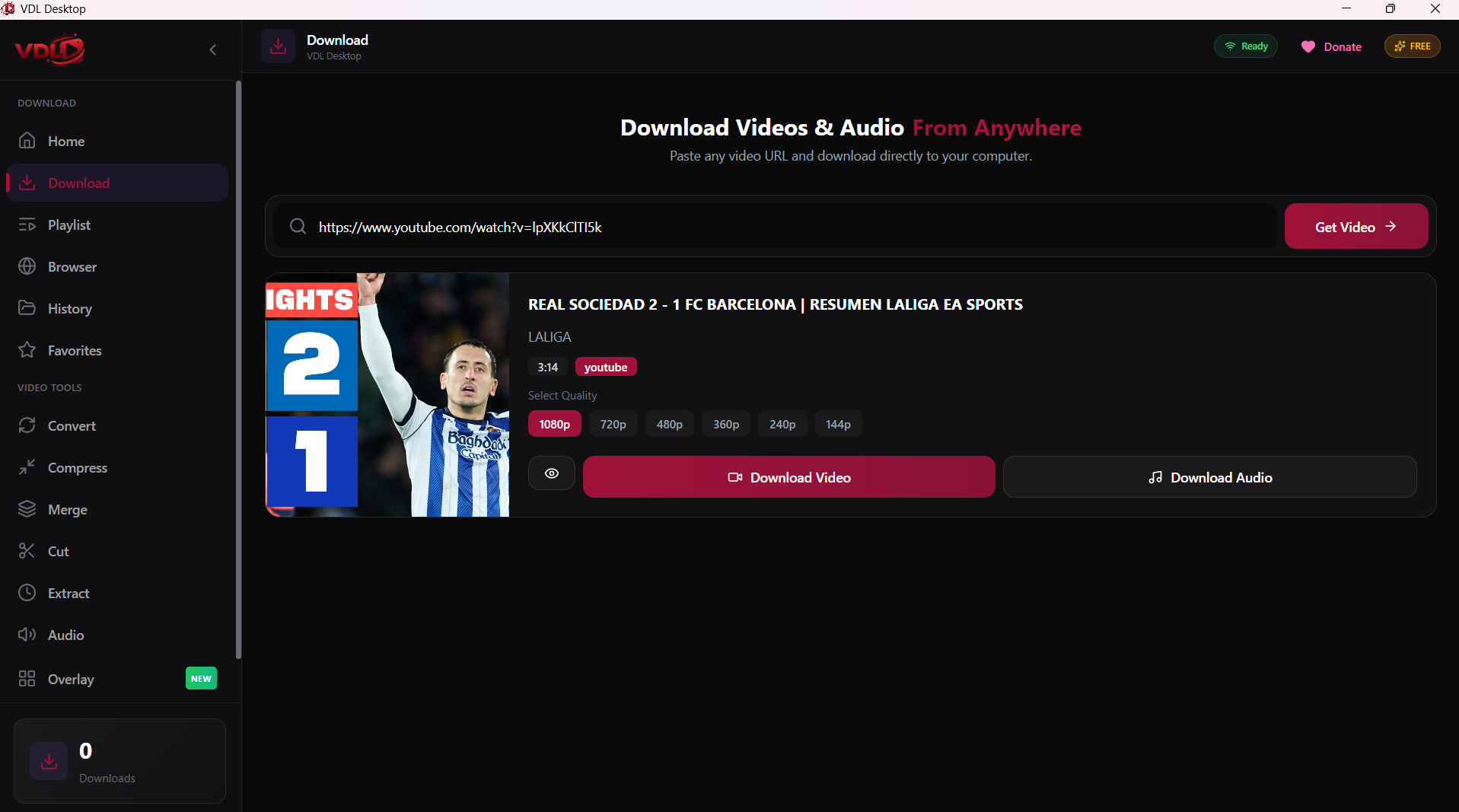
First, download VDL from the official releases page. The application is available for Windows and weighs approximately 150MB. Installation is straightforward - just run the installer and follow the prompts.After installation, launch VDL. You will be greeted by a clean, modern interface with a URL input field prominently displayed at the top.
Step 2: Find Your Video on YouTube
Open your web browser and navigate to YouTube. Find the video you want to download. This could be:
- A music video from your favorite artist
- An educational tutorial you want to study offline
- A documentary for entertainment
- A lecture or presentation for work or school
Step 3: Copy the Video URL
Once you have found your video, copy its URL from the browsers address bar. You can do this by clicking on the address bar and pressing Ctrl+C on Windows.
Step 4: Paste and Analyze
Return to VDL Desktop and paste the URL into the input field using Ctrl+V. VDL will automatically analyze the video and retrieve its metadata, including video title, thumbnail, available quality options, and duration.
Step 5: Choose Your Quality
VDL presents you with multiple quality options:
- 360p - Smallest file size, suitable for mobile viewing
- 720p (HD) - Good balance between quality and file size
- 1080p (Full HD) - Excellent quality for desktop viewing
- 4K (2160p) - Maximum quality, requires significant storage
Step 6: Start the Download
Click the Download button to begin. You will see a progress bar showing download percentage, current download speed, and estimated time remaining.
Pro Tips for Power Users
Use the Integrated Browser
VDL includes a built-in browser that lets you navigate YouTube directly within the app. This is incredibly convenient because you can browse and download without switching windows.
Download Playlists
Have a playlist of videos you want to save? Simply paste the playlist URL and VDL will show all videos in the playlist and let you select which ones to download.
Conclusion
Downloading YouTube videos with VDL is fast, free, and reliable. Download VDL today and start building your offline video library!